
Requirements:
https://techtinktronics.com/ – Support the channel
Splash sheet
-how to enable macros
Data Sheet
-hidden sheet that holds 3 fields of data
-Persons initials
-ID number
-Today’s date as calculated by excel and clock
Label sheet
-contains 6 copies of the custom label
-reads its data from the hidden data sheet
-cannot be edible but can click one button to re-enter the data if necessary
-Button that resets sheet to blank for the two variables
-On close hide label and unhide the splash
-On open if macro is enabled goes to the label sheet
-Workbook to be locked from manual editing
-All VBA code is to be not visible
Steps
1) Open a blank excel spreadsheet and make 3 tabs.
2) Label the sheets, VBAError, Data, and Label.
3) Setup the Code for the VBAError worksheet hiding and unhiding logic.
4) Build The data sheet then hide it.
5) Create the print button and macro.
6) Create the Form for entering the persons initials and control number.
7) Create the code that takes the data from the form and enters it into the data sheet.
8) Create a code and button that clears the data from the data sheet regarding initials and control number.
9) Protect the sheet with the VBA Excel code.
1) Open a blank excel spreadsheet and make 3 tabs.
2) Label the sheets, VBAError, Data, and Label.
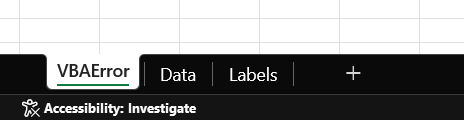
Create the VBA Error page to instruct the end user on how to enable macros.
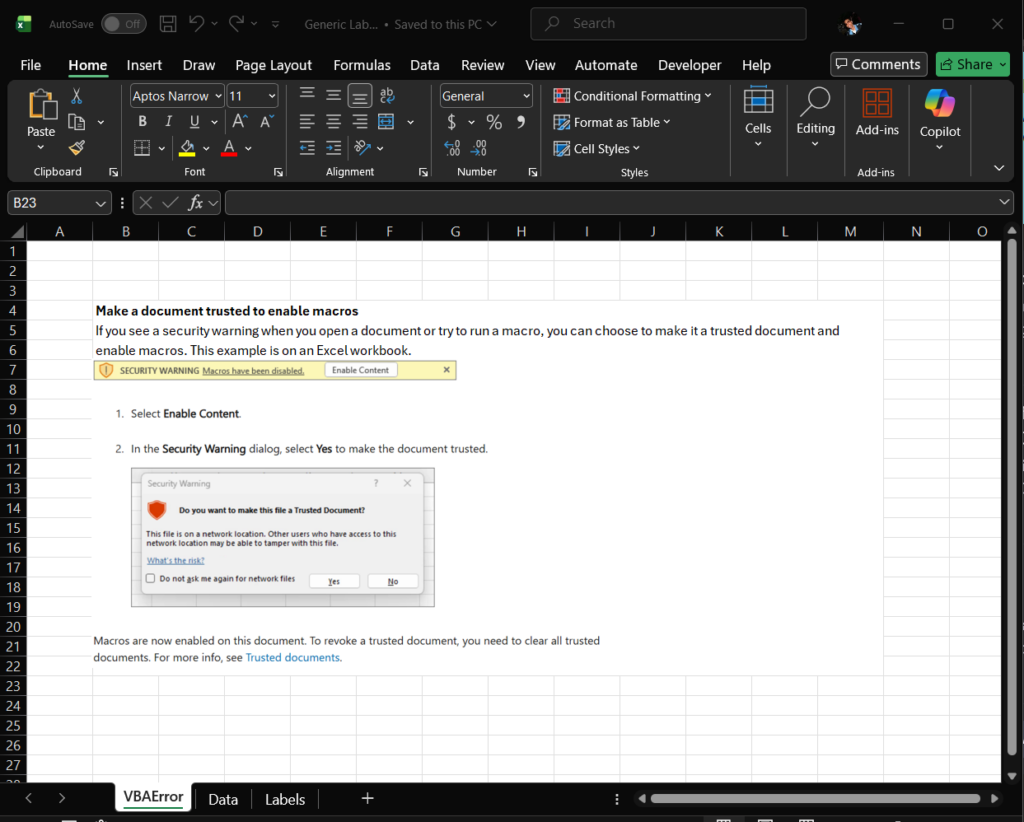
3) Setup the Code for the VBAError worksheet hiding and unhiding logic.
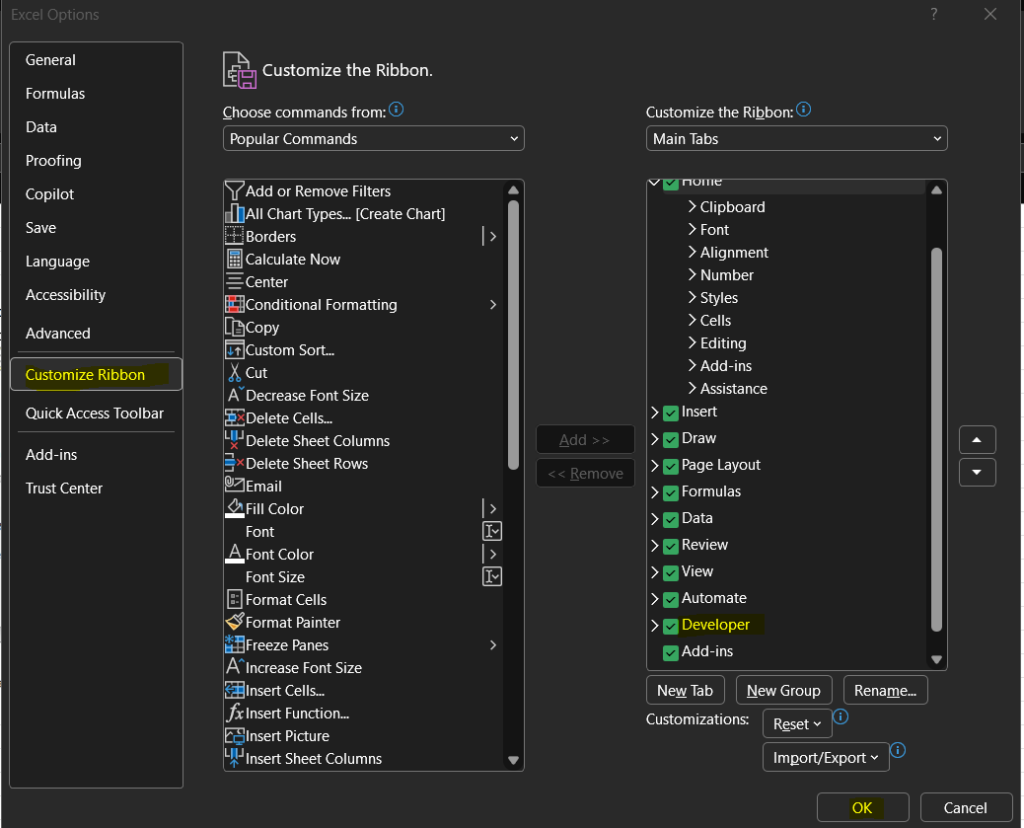
Be sure to enable the developer on the Excel ribbon to access VBA.
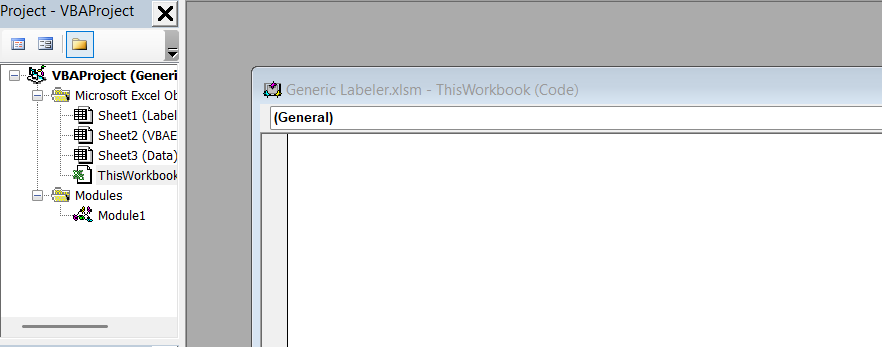
Paste the following Excel VBA codes into ThisWorkbook section.
Private Sub Workbook_Open()
ActiveWorkbook.Unprotect Password:="glabel1223"
UnprotectAllSheetsWithPassword
    Dim ws As Worksheet
    ' Unhide label sheet
    Sheets("Labels").Visible = xlSheetVisible
    ' Hide the Welcome sheet
    Sheets("VBAError").Visible = xlSheetHidden
    Sheets("Data").Visible = xlSheetHidden
    ProtectAllSheetsWithPassword
ActiveWorkbook.Protect Password:="glabel1223", Structure:=True, Windows:=False
Sheets("Labels").Range("A1").Activate
End Sub
The code above will show a VBAError sheet if macros need to be enabled and show the Labels sheet if marcros are enabled. The book will be protected with a password, so we need to run a code that unprotects the workbook and sheets to run the code and protects when the code is finished. Note: When final version is set, we will hide the Labels and Data sheets. The data sheet should stay hidden.
Private Sub Workbook_BeforeClose(Cancel As Boolean)
    ActiveWorkbook.Unprotect Password:="glabel1223"
    UnprotectAllSheetsWithPassword
    Dim ws As Worksheet
    ' Make sure Welcome is visible
    Sheets("VBAError").Visible = xlSheetVisible
    ' Hide labels sheet
	Sheets("Labels").Visible = xlSheetHidden
	Sheets("Data").Visible = xlSheetHidden
    ' Save the workbook with sheets hidden
    ActiveWorkbook.Protect Password:="glabel1223", Structure:=True, Windows:=False
    ProtectAllSheetsWithPassword
    ThisWorkbook.Save
End Sub
The code above will 1st unprotect workbook and all worksheets, show the VBA Error Page, hide the others and protect the workbook and worksheets with password.
4) Build The data sheet then hide it.
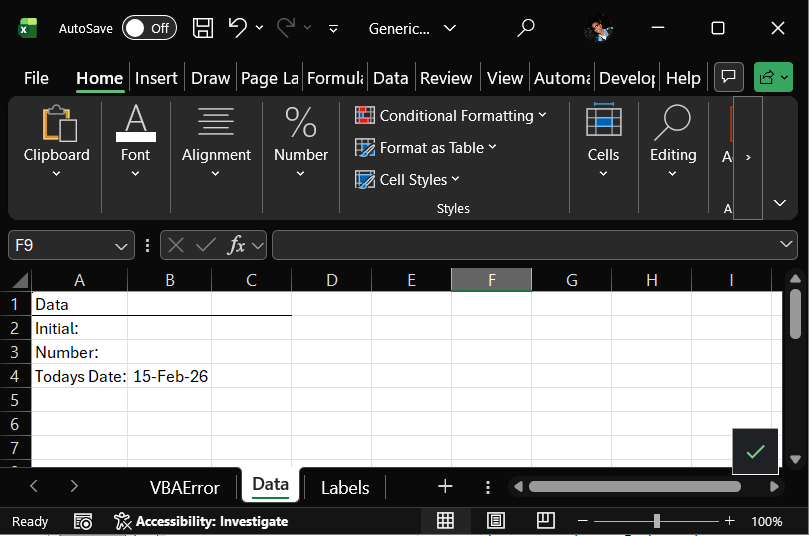
Put an area for the persons initials, ID Number, and calculate the date by putting the formula =Today() in B4 cell.
=IF((Data!$B$2 = 0), "", Data!$B$2)Use the If statement to display nothing if there is no information in the Data sheet cell B2. Paste in the other fields. The $s keep the cell designation from changing.
5) Create the print button and macro.
The following code saves the workbook, then prints the label sheet on your printer. Paste this code in the module. Create a button and assign it to this macro.
Sub SavenPrint1()
ActiveWorkbook.Save
Sheets("Sheet1").PrintOut From:=1, To:=1, Copies:=1, Collate:=True
End Sub
6) Create the form for entering the persons initials and control number.
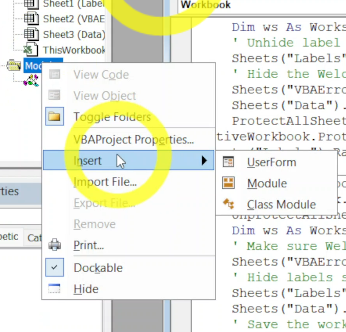
Right click Microsoft Excel Objects, go to insert and userform.
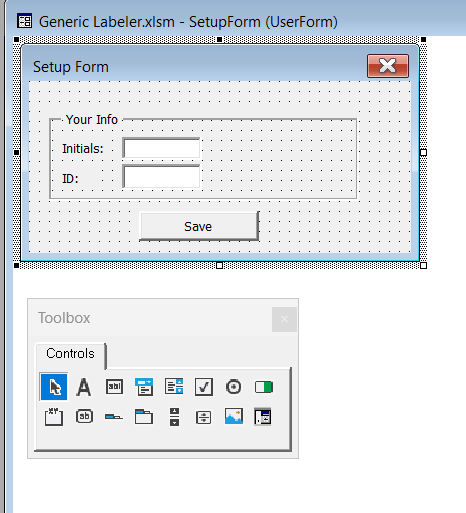
7) Create the code that takes the data from the form and enters it into the data sheet.
We are going to do this in 2 steps. First, we need to call the form with a button on the label sheet. Second, when they hit save, the macro takes the data entered in the userform and enters it into the hidden data sheet. Then this macro will run the save workbook command.
This code will call the form that we created.
Sub OpenForm()
    ' Replace UserForm1 with the actual name of your form
    ' Shows the form
    SetupForm.Show
End Sub
When the save button is clicked the following code will unlock the worksheet and workbook, and input the data entered to be fed out to the label sheet. The cell references are (Row, Column).
Sub cmdSubmit_Click()
Application.ScreenUpdating = False
ActiveWorkbook.Unprotect Password:="glabel1223"
UnprotectAllSheetsWithPassword
    Dim lRow As Long
    Dim ws As Worksheet

    ' Set a reference to the worksheet where you want to store the data
    Set ws = ThisWorkbook.Sheets("Data") ' Change "Sheet1" to your actual sheet name

    ' Find the next empty row in Column A
    lRow = ws.Cells(2, 2).End(xlUp).Offset(1, 0).Row

    ' Transfer data from the UserForm controls to the cells in the next empty row
    With ws

        .Cells(2, 2).Value = SetupForm.INitialsTB1.Text
        .Cells(3, 2).Value = SetupForm.ID1.Value
        ' Add more lines here for additional fields, e.g.:
        ' .Cells(lRow, 4).Value = Me.ComboBox1.Text
    End With

    ' Optional: Clear the form for the next entry
    SetupForm.INitialsTB1.Value = ""
    SetupForm.ID1.Value = ""

    ' Optional: Provide user feedback
    'MsgBox "Data has been added successfully!"
    'Close the form
    SetupForm.Hide
    ' Activate cell A1 on sheet 1
    Sheets("Labels").Range("A1").Activate

    ' Re-enable screen updating
    Application.ScreenUpdating = True
    ActiveWorkbook.Protect Password:="glabel1223", Structure:=True, Windows:=False
    ProtectAllSheetsWithPassword
    'Save workbook
    ActiveWorkbook.Save
End Sub
The following are codes that get called to lock and unlock the workbook and sheets to move the data.
8) Protect the sheet with the VBA Excel code.
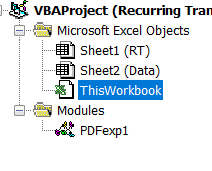
Note: The following codes go in the ThisWorkbook area.
Protect all Sheets with Password
Sub ProtectAllSheetsWithPassword()
    Dim ws As Worksheet
    Dim Password As String

    ' Define your password here
    Password = "glabel1223"

    ' Loop through all worksheets in the ActiveWorkbook
    For Each ws In ActiveWorkbook.Worksheets
        ' Protect the worksheet with the specified password
        ws.Protect Password:=Password, Contents:=True, DrawingObjects:=True, Scenarios:=True
    Next ws

    'MsgBox "All sheets are now protected with a password.", vbInformation, "Protection Status"
End Sub
Unprotect All Sheets With Password
Sub UnprotectAllSheetsWithPassword()
    Dim ws As Worksheet
    Dim Password As String

    Password = "glabel1223"

    For Each ws In ThisWorkbook.Worksheets
            ws.Unprotect Password:=Password
        Next ws
End Sub
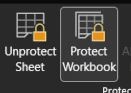
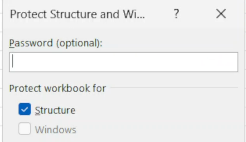
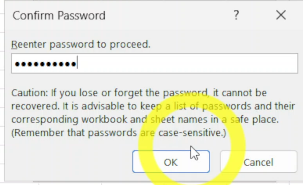
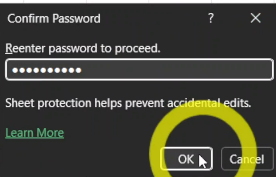
9) Hide and lock up the code after everything is smoke tested and working.
https://techtinktronics.com/ – Support the channel