
What is NTLite?
NTLite is a powerful Windows customization and configuration application designed to create personalized, streamlined, and “de-bloated” Windows (7, 8, 10, 11) installation images. It enables users to integrate drivers, updates, and tweaks into a bootable ISO, and remove unwanted components to reduce the OS footprint, often used for optimizing system performance or unattended installations.
My Problem
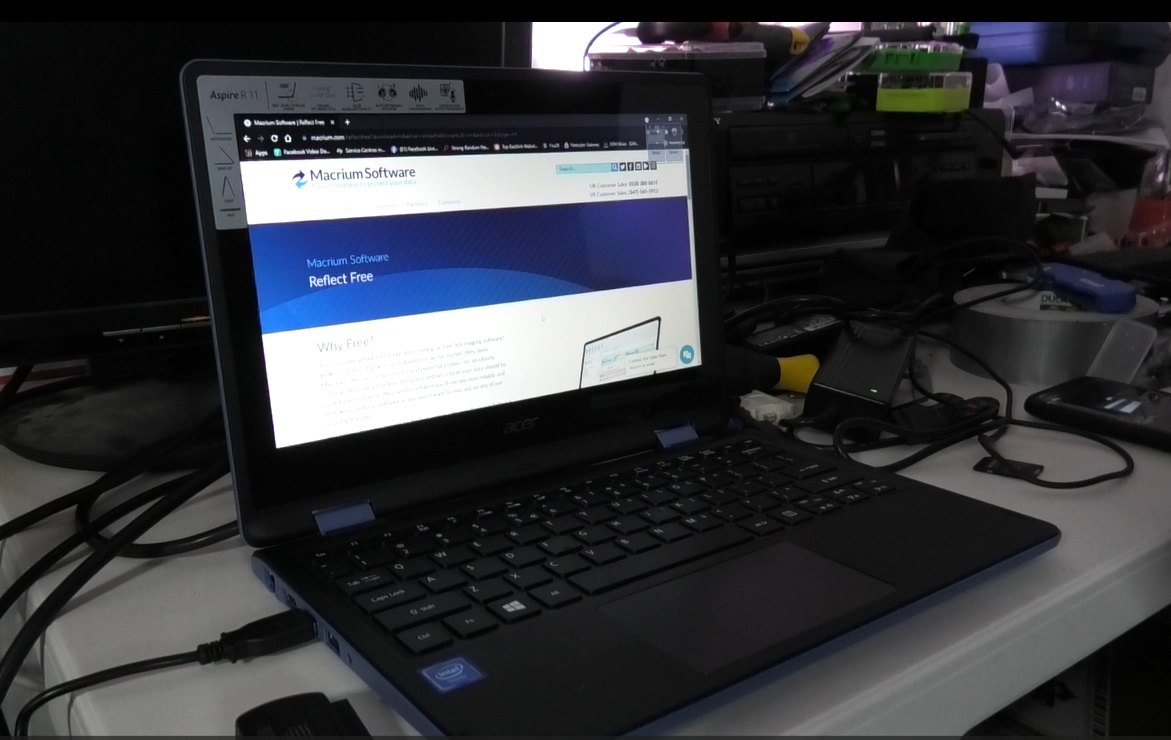
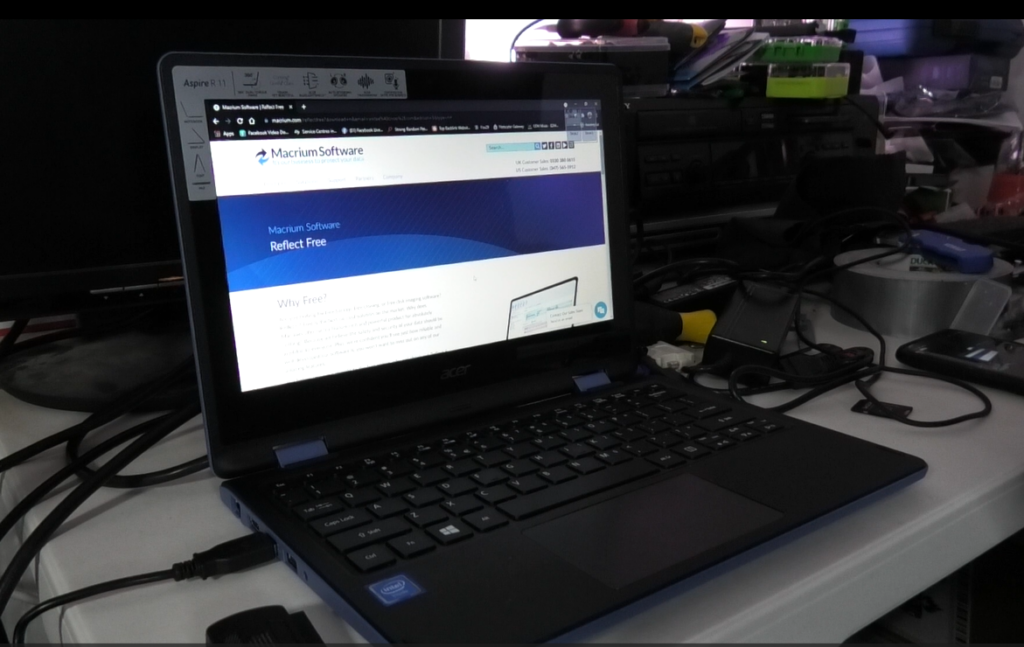
The ACER R 11 R3 131T cannot have an upgraded HD because it is a small chip soldered to the motherboard. I do not have the tools to upgrade the device with a new soldered HD. It is stuck with Windows 10. The HD is 32 GB, and the standard version of windows requires too much space on that HD. I get HD getting full messages. System sometimes runs slow.
My Choices
- Throw it away.
- Sell it
- Install a light Linux Distro
- Run Windows 10 with perfermance issues because of low hard drive space
- Attempt to install a light version of Windows 11 on it
1st Choice
Run a de-bloated Windows 10 Install
The 12 Steps:
- Check target PCs Specs
- Download the Windows 10 ISO From Microsoft.
- Download NTLite application
- Install and Run the NTLite Application.
- Make the necessary modifications to the Windows 10 ISO in NTLite.
- Create A virtual environment in VMWare or HyperVisor of Choice to test ISO before taking it live.
- Download Rufus.
- Format to a blank USB thumb drive.
- Use Rufus to write the Modified ISO to blank USB drive.
- Power on the Acer R11 R3 131T and press the F2 key repeatedly when the Acer logo appears.
- Select the USB thumb drive to be the Boot device.
- Run Windows 10 installation.
If ever you are locked from the BIOS of the Laptop, go to https://bios-pw.org/ .